
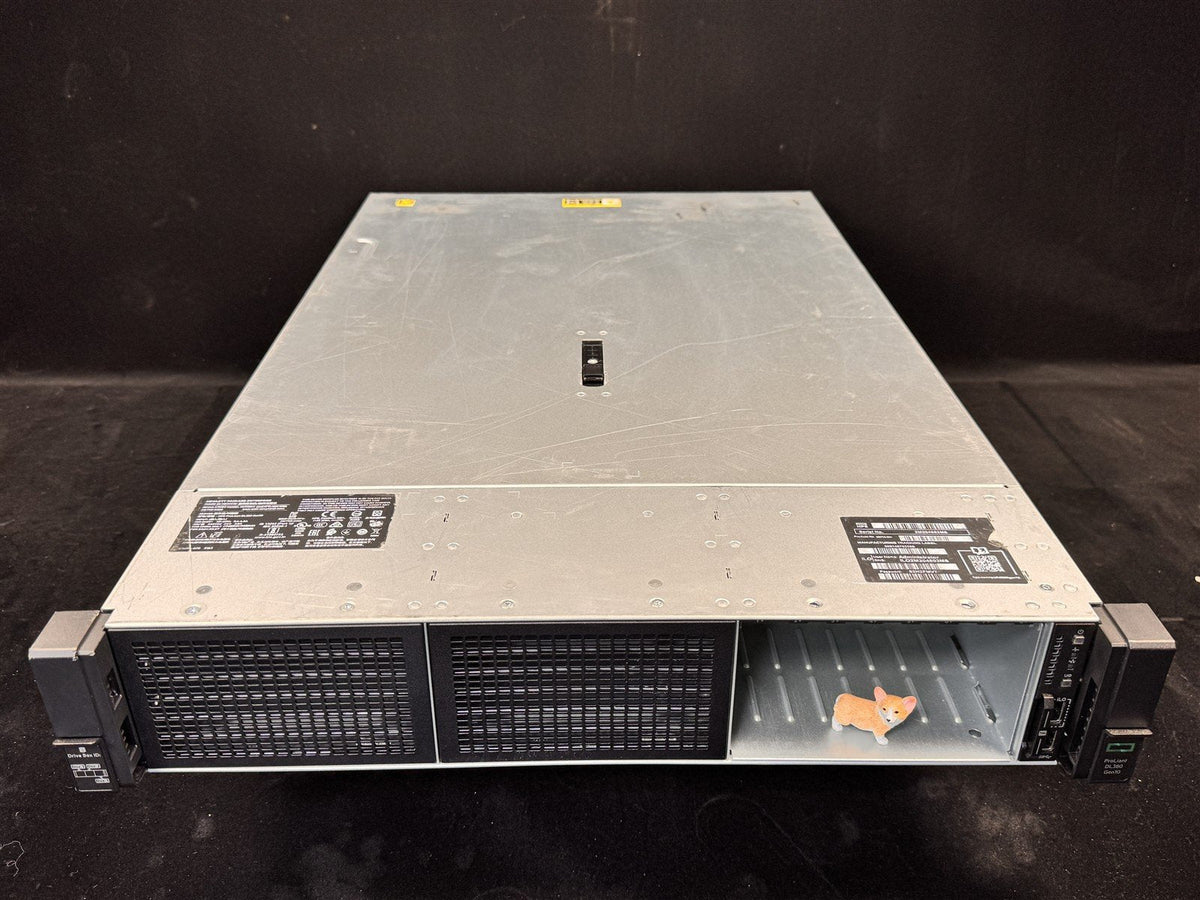
If you manage a ProLiant Gen10 server with a standard iLO license, you have probably run into this wall: you mount the Service Pack for ProLiant (SPP) ISO through iLO Virtual Media, the server starts booting from it — and then the session drops or the mount disappears partway through. It looks like a network problem. It usually isn't.
Virtual Media is an iLO Advanced feature. On a standard license, remote ISO mounting is not reliably available, so the SPP-over-Virtual-Media route tends to fail mid-session no matter how good your connection is. The good news: you can still update everything — iLO itself, the System ROM (BIOS), and the other firmware components — using two lesser-known paths that work fine on a standard license.
Step 1: Update iLO Itself with a .bin File
The iLO Firmware update page does not accept every file format HPE publishes. It accepts the raw .bin image — and only that.
- Go to the HPE support page for your server model and download the "Online ROM Flash Component for Windows" for iLO 5. The file will be named something like
cp0xxxxx.exe. - Don't run it. Instead, open it with 7-Zip (right-click → Open Archive) and extract the
.binfile inside — it will be named along the lines ofilo5_3xx.bin. - In the iLO web interface, go to Firmware & OS Software → Update Firmware, choose the
.binfile, and upload it. - iLO updates and restarts itself. The server and its workload are not affected.
One common mistake: uploading a .fwpkg file on this page. It will be rejected with a "file signature is invalid" error. That error doesn't mean the file is corrupt — it means you're using the wrong page for that file type. .fwpkg files go through the iLO Repository, covered next.
Step 2: Update the BIOS and Other Components via the iLO Repository
"System ROM" is simply HPE's name for the BIOS. The System ROM and most other firmware components (NICs, storage controllers, and so on) are distributed as .fwpkg files, and they are installed through a different mechanism:
- Download the
.fwpkgfiles you need from the HPE support page for your model. - In the iLO web interface, open the iLO Repository tab and upload each
.fwpkgfile. - Go to the Installation Queue tab, select the uploaded components, and add them to the queue.
- The queued updates are applied the next time the server reboots. Reboot at a convenient moment and let the process finish — do not power the server off while queued firmware is being applied.
This works because the repository and installation queue are part of base iLO functionality; no Advanced license is required.
How to Recognize the Right BIOS File
HPE names System ROM files by a short code, and picking the wrong model's file wastes time. For the common Gen10 and Gen9 machines:
| Server | System ROM code |
|---|---|
| ProLiant DL380 Gen10 | U30 |
| ProLiant DL360 Gen10 | U32 |
| ProLiant DL380 Gen9 | P89 |
| ProLiant DL360 Gen9 | P64 |
If the ROM family on the download page doesn't match your server's code, you have the wrong file.
The Fallback: Boot the SPP from a USB Stick
If you have physical access to the server, there is a third route: write the SPP ISO to a USB flash drive with a tool such as Rufus, boot the server from the USB drive, and let the Smart Update Manager (SUM) in the SPP inventory and update the machine locally. This avoids Virtual Media entirely and is often the fastest option when the server is on your own bench.
Summary
- Virtual Media needs an iLO Advanced license; a standard license failing mid-mount is expected behavior, not a network fault.
- iLO itself: extract the
.binfrom the Windows flash component .exe and upload it on the Firmware page. - BIOS (System ROM) and other components: upload
.fwpkgfiles to the iLO Repository, queue them, and reboot. - Match the ROM code to your model — U30 for DL380 Gen10, U32 for DL360 Gen10 — before you start.
Reservertech tests and updates firmware on the refurbished servers we sell as part of our standard preparation process. If you run into a firmware question on a machine you bought from us, contact us and we'll walk you through it.


Leave a comment
This site is protected by hCaptcha and the hCaptcha Privacy Policy and Terms of Service apply.